 VeilBox
VeilBox / Guides
How to configure VLESS on Windows
This guide walks through VeilBox's Windows 2.2.0 workflow: install the client, import a VLESS profile, choose how applications use it and check the result. You need working details from your own server or provider. The example field descriptions below are not a public server configuration.
1. Collect the correct connection details
Use a complete vless:// link for one server, or an HTTP(S) subscription address for a list of profiles. A provider's account page is not necessarily its subscription endpoint. Keep the original link so you can compare it with the imported profile later.
For manual configuration, obtain the server address, port, UUID, transport and security settings. A Reality profile also needs the administrator's SNI and public key; Short ID, fingerprint, flow and transport fields must match the supplied configuration. Do not invent those values or use another tutorial's sample credentials.
2. Install the Windows client
- Download the official Windows x64 installer using the download section on this page. The published Windows release is 2.2.0 for Windows 10 and 11.
- Run the installer and open VeilBox. Keep the initial configuration simple; do not add split-routing rules until a basic connection is working.
3. Import a link or subscription
Some import labels are in Russian in the tagged interface: URL подписки means subscription URL, and Импортировать подписку means import subscription. Preserve private tokens when copying the address, but redact them before sharing logs.
- For one VLESS connection, open the profile-link import control. The form is labelled Import VLESS / Shadowsocks / Hysteria2 in the inspected 2.2.0 source. Paste the complete vless:// URI and import it.
- For multiple servers, use subscription import instead. Paste the HTTP(S) subscription endpoint in the URL field and submit it. VeilBox supports ordinary text and base64-encoded subscription lists.
- Review the resulting profiles and select the one you want to connect through. If the import is empty or fails, inspect the error and verify that the URL returns configuration data rather than a login page.
4. Check manual and Reality fields
When your provider's URI imports successfully, prefer its values over a generic preset. If you configure the profile manually, use the following checklist.
Swipe or scroll horizontally to view all columns.
| Field | Where the value comes from |
|---|---|
| Server address / port / UUID | Your provider or server administrator; not the subscription web-page address |
| Transport / security | The server's accepted transport and TLS or Reality configuration |
| SNI / Public key | Required by the inspected Reality validator; copy the server's values exactly |
| Short ID / Fingerprint / Flow | The matching connection specification, when supplied |
| Path / Host / Service name | Transport-specific values, not interchangeable generic defaults |
The Windows 2.2.0 builder sets VLESS encryption to none and relies on the configured outer transport security. Keep the provider's TLS or Reality settings for public-internet use. This guide does not claim support for newer standalone VLESS Encryption modes.
5. Choose System Proxy or TUN and connect
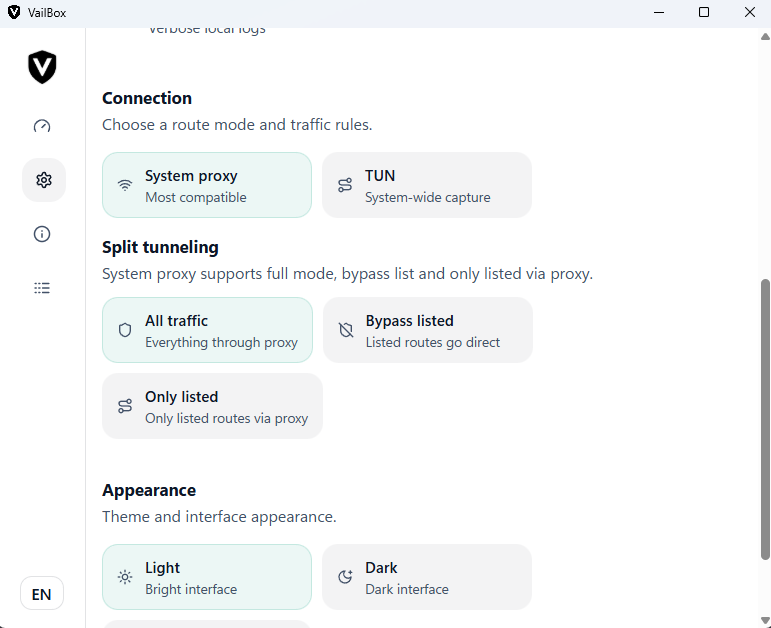
- Open Settings and choose System Proxy for applications that follow Windows proxy settings, or TUN for the virtual-interface workflow. Disconnect before changing connection settings.
- For an initial TUN test, use Full tunnel. When you connect, VeilBox can request an administrator relaunch; approve it if you intend to use TUN.
- Return to the dashboard, confirm the selected profile and connect. Read any startup or validation error before changing several unrelated settings.
6. Verify the traffic you care about
Open the applications and destinations you intend to route. Compare their behavior with the disconnected state and inspect the connection logs when something fails. A local profile test can validate startup or configuration without proving remote connectivity; an HTTP proxy port on the dashboard is not proof that every program is routed.
System Proxy does not capture every application or all UDP traffic. After enabling split routing, test a listed and an unlisted destination. Only listed and Bypass listed have opposite meanings: the first sends matching traffic through the selected route, while the second sends matching traffic directly.
Troubleshoot by symptom
Swipe or scroll horizontally to view all columns.
| Symptom | Check first |
|---|---|
| No profiles after subscription import | Endpoint, subscription validity and response format; exclude HTML login pages |
| Reality validation error | Missing SNI or public key, then the original URI and transport-specific fields |
| Profile saves but does not connect | Server availability, credentials, matching transport/security and application logs |
| Browser works but another app does not | Whether the application respects System Proxy; evaluate the TUN workflow if needed |
| TUN cannot start | Administrator permissions, bundled runtime components and the exact logged error |
Frequently asked questions
Do I paste an https:// subscription into the VLESS link field?
Use the dedicated subscription URL form for an HTTP(S) endpoint. Use the profile-link form for a single vless:// URI. The two inputs describe different import workflows.
Do I need administrator rights for every connection?
The Windows TUN workflow requires elevated permissions and can request an administrator relaunch. Do not infer TUN permission requirements for every System Proxy operation.
Why is a connected status not enough to verify routing?
Different applications can use different routes. System Proxy is not universal traffic capture, and TUN split rules deliberately allow direct traffic. Test the applications and destinations you actually intend to tunnel.
Can I use these instructions for macOS?
These are Windows 2.2.0 instructions. The published Mac package is a separate 2.1.0 Apple Silicon beta; Windows elevation and tunnel-component steps do not apply to it.
Download VeilBox
Windows: 2.2.0. macOS Apple Silicon: 2.1.0 beta. VeilBox does not include VPN servers.
Related guides
Sources and compatibility notes
Technical steps checked against VeilBox 2.2.0 Windows source. Labels can vary with the interface language. The separately published macOS beta does not establish Windows feature parity.
- src/features/profiles/ImportProfileDialog.tsx
- src/features/profiles/ImportSubscriptionDialog.tsx
- src/pages/SettingsPage.tsx
- src-tauri/src/config_builder.rs